
EduLink One is our parent app for smartphones and tablets and provides an integrated school information platform that allows parents/carers to view a wide variety of day-to-day information about their child with ease.
EduLink One is now the one-stop-shop for your entire home to school (and vice versa) communication needs, and there will be more features added and made available to you in due course. Please find below a basic user guide that can be downloaded to help navigate around the platform.
You can access the following information via the EduLink One App which is available for Apple (iOS) and Android via the App Stores:
School Reports
Catering transactions and balance
Letters home
Exam Timetables and entries
Behaviour and detention log
Achievements and awards
Absence reporting
Contact details
Medical information
Lesson timetable
School calendar
N.B. – Some of these functions, such as Absence Reporting, are only available when signed in as a Parent and not as a student. (Parent logins start with a p_ (e.g. p_jsmith) Student logins start with their year of entry (e.g. 23SmithAnna))
EduLink One Demo: See the app in action! Click here to view a demo.
Access EduLink One from your Smartphone or tablet
- Go to your App store
- Search for EduLink One
- Download the free app
- Open EduLink One
- Enter stgeorges into the School ID field
- Enter your username and password and click Log In. Parent logins start with a p_ (e.g. p_jsmith)
Access EduLink One from your computer or laptop
If you don’t have access to a smartphone or tablet, you can access EduLink One via the website www.edulinkone.com. You will still receive all notifications, which will be sent to the email address that we have registered for you.
- Visit edulinkone.com
- Enter stgeorges into the School ID field
- Enter your username and password and click Log In. Parent logins start with a p_ (e.g. p_jsmith)
How to update Pupil / Parent information on EduLink
N.B. – This function is only available when signed in as a Parent and not as a student.
(Parent logins start with a p_ (e.g. p_jsmith) Student logins start with their year of entry (e.g. 23SmithAnna))
On the main Edulink screen click on “Update Information”
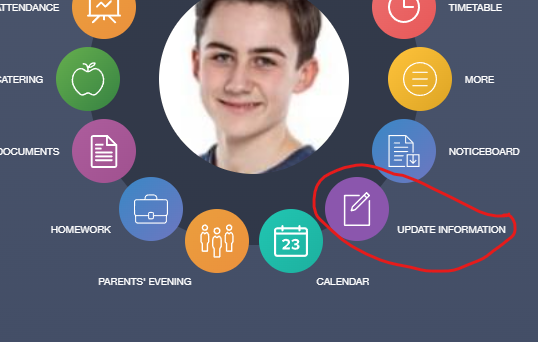
To update your details, complete the fields displayed. Click on ‘Save’.
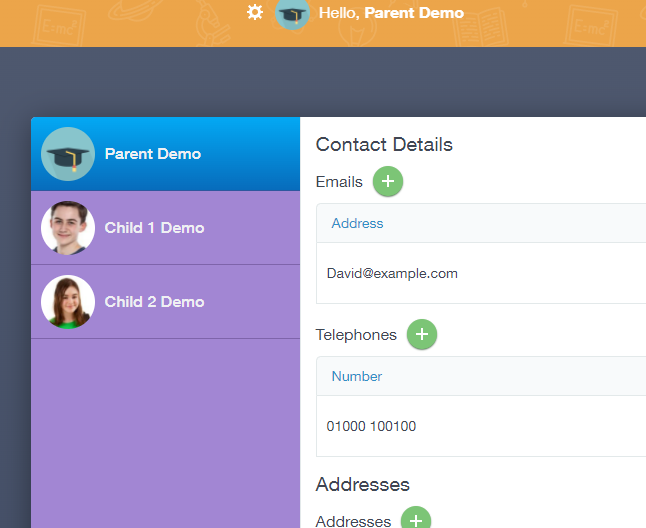
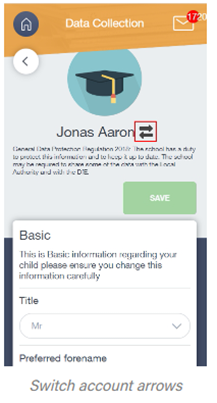
To update a student’s details, select the student on the left. If you are using the app on a smartphone you will need to tap on the double arrow and select the student (see below).
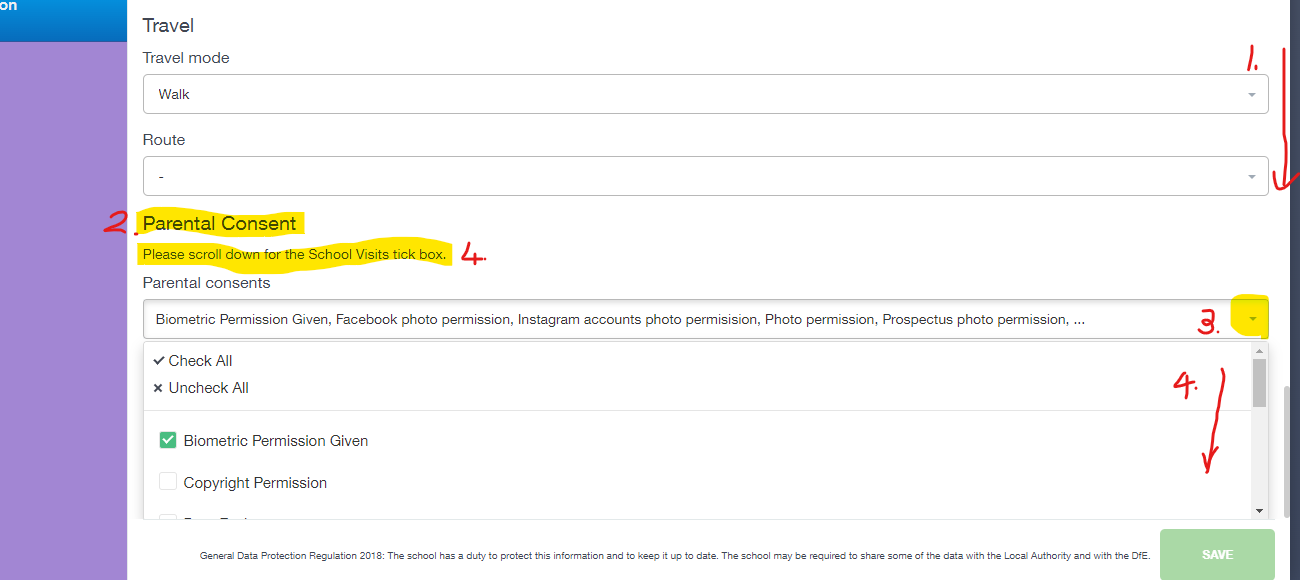
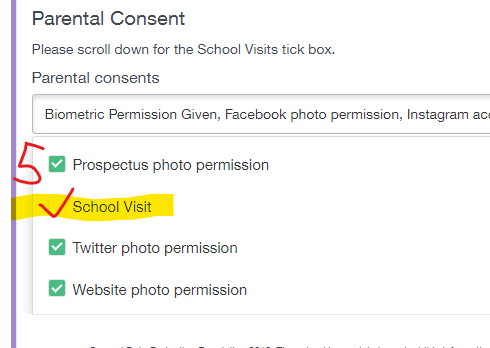
Once selected, complete the fields as required. Please be aware that the Parental Consent section is at the bottom of the window. 1. and 2. Scroll down, 3. Expand section. 4. Scroll down (making sure you use the scroll bar in the Parental Consent window (just to the right of the number 4 below)). The School Visit confirmation (5) is towards the bottom. N.B. Only click on ‘Save’ when you have made all the changes required and not after each one.
If you need help retrieving your username and password, please email ictsupport@stgeorges.herts.sch.uk